
Set Up MinIO Object Storage for Self-Hosted Apps with Docker Compose
Stand up a small S3-compatible storage service with MinIO, persistent storage, a clear console/API split, and a safer first-run workflow than “docker up and hope.”
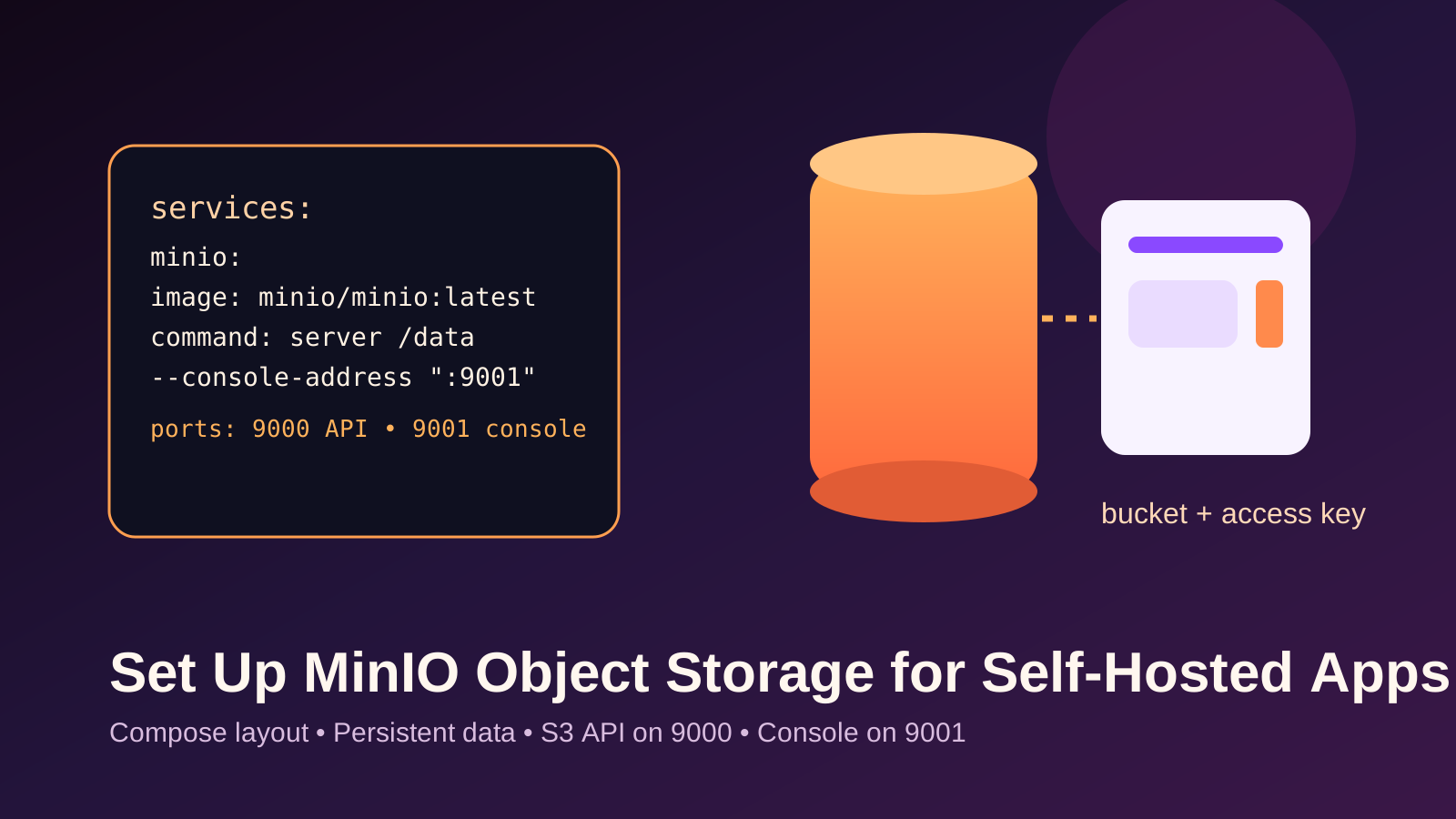
How to deploy a small MinIO service, persist its data, create a bucket, generate an access key, and verify that the service survives restart.
Backups, app uploads, artifact storage, and other self-hosted workloads that need an S3-compatible endpoint you control.
The fastest path to trouble is exposing MinIO directly on the public internet before you have TLS, intentional auth, and a recovery plan.
Before you begin
- A Linux host with Docker Engine and Compose V2.
- A directory where you can store persistent MinIO data.
- A plan for whether MinIO stays private behind a tunnel or proxy, or will later sit behind HTTPS deliberately.
- Enough disk space for both live data and future backups.
MinIO's current docs still make two important basics obvious: the S3 API commonly lives on port 9000, and the web console commonly
lives on port 9001. Keep those roles separate in your head from the start. The API is for applications. The console is for human
administration.
Step 1: Create a clean project layout
Start with a small dedicated directory:
mkdir -p ~/minio-compose/data
cd ~/minio-compose
Keeping MinIO in its own Compose project makes later upgrades, restarts, and backup planning clearer than burying it inside a giant unrelated stack.
Step 2: Write the Compose file and env file
Create a local environment file first:
cat > .env <<'EOF'
MINIO_ROOT_USER=minioadmin
MINIO_ROOT_PASSWORD=replace-this-with-a-long-random-password
EOF
Then create compose.yaml:
services:
  minio:
    image: minio/minio:latest
    container_name: minio
    restart: unless-stopped
    env_file:
      - .env
    command: server /data --console-address ":9001"
    ports:
      - "9000:9000"
      - "9001:9001"
    volumes:
      - ./data:/data
The important part is not the YAML formatting trophy. It is the intent: persistent storage under /data, a console bound to
9001, and credentials stored outside the Compose file itself.
Step 3: Launch and verify MinIO
Validate the rendered config first, then start the service:
docker compose config
docker compose up -d
docker compose ps
docker compose logs --tail=50
After startup, open http://localhost:9001 if you are on the same machine, or use a private tunnel if you are managing the host
remotely. Sign in with the root credentials from the env file.
From MinIO's docs, the console and API are separate endpoints by design. Do not point application clients at the console port by mistake. Normal
S3-compatible client traffic belongs on 9000.
Step 4: Create a bucket and application credentials
You can manage MinIO through the console, but the mc client makes repeatable setup easier. Once installed, add an alias:
mc alias set localminio http://127.0.0.1:9000 "$MINIO_ROOT_USER" "$MINIO_ROOT_PASSWORD"Create a first bucket:
mc mb localminio/app-dataThen create an application-specific access key through the console or the MinIO admin workflow. Use that key for apps and backup tools instead of normalizing the root user everywhere.
This is also the right moment to write down which bucket names are for uploads, backups, or artifacts so future services do not pile into one vague storage bucket.
Step 5: Decide how clients should reach it
You have three sane early patterns:
- Local-only or same-host use, where the app talks to
http://minio:9000inside a Compose network. - Private admin access through SSH port forwarding or a tailnet.
- A deliberate reverse proxy and TLS path if outside clients truly need object access.
If MinIO is only serving containers in the same stack, do not publish ports publicly just because a tutorial somewhere did. Internal networking is cleaner and safer.
Backup and restore notes
MinIO is storage infrastructure, not a backup strategy by itself. You still need to protect the underlying data directory and any configuration or credential material required to rebuild access.
At a minimum, back up:
- the MinIO data path
- the Compose project files
- the credential records or admin recovery procedure
Restore drills matter here. A backup that only copies raw files but never gets tested against a fresh container is still partly a guess.
Troubleshooting
The console loads but applications cannot connect.
Check that the app is using port 9000 for the S3 API, not the console on 9001.
Compose starts but nothing persists after restart.
Re-check the volume mapping and confirm you are writing to the mounted /data path.
The service is reachable but the credentials fail.
Inspect the env file, then recreate the container if the wrong bootstrap credentials were baked into the first run.
You want outside access immediately.
Slow down. Put TLS and access control in front of it first, or keep it private until the need is real.